
Game Day Mode Sports Display: One Press On, One Press Off
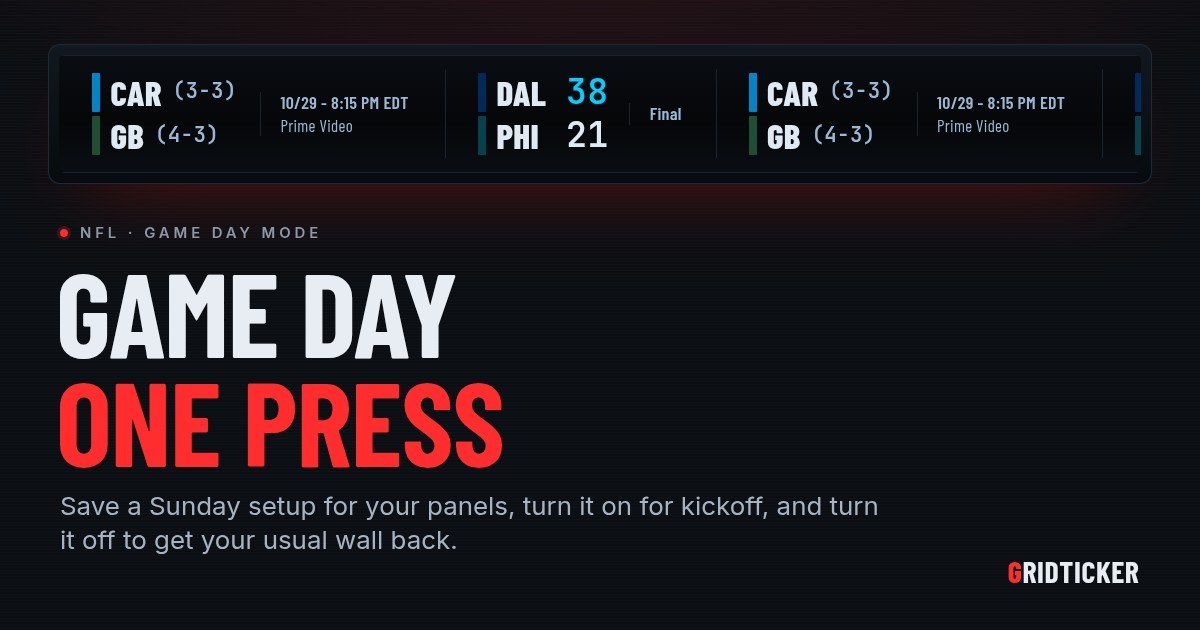
A game day mode on a sports display is a saved setup. You turn it on for the game and off when the game ends. In GridTicker this is called a mode. You build it once under Settings → Modes and turn it on with one press, from the home page or from Settings. Turning it off puts your panels back exactly as they were. One thing to know first: modes are built for GridTicker's LED panels, which are in testing and not for sale yet. If you use the browser ticker today, the last section covers what you can set up there now.
What a mode is
Most of the week, a ticker on the wall carries a little of everything: scores, headlines, the weather, maybe your stock watchlist. On Sunday you want one thing. A Monday morning wants something else. A mode lets you save each of those setups and switch between them without rebuilding your settings every time.
GridTicker's own examples are an NFL game day and a Wake Up for the morning. A mode can change:
- which tickers appear
- how they look
- when each one appears
- brightness and speed
Your teams, watchlists, places and time zone stay with your account. A game day mode doesn't make you star your favorite teams again. It changes how the wall presents them.
Building a game day mode
- Set up a panel the way you want it for Sunday.
- Go to Settings → Modes and press New mode.
- Give it a name, such as "NFL Sunday", and choose what it starts from: Default settings, or a panel's or a group's current settings.
- Press Create mode.
- Use Edit settings to fine-tune it. This opens the settings page on the mode itself, with the same controls a panel's own settings have.
- Use Edit details for its name and emoji, and for three more choices.
Teams, where, and when
Those three choices under Edit details do most of the work:
- Teams: everyone's in your household, or only yours. Only games with favorite teams narrows it further. If you only care about the Steelers and the Browns, the mode can show just their games.
- Where: every panel, or only the panels and groups you check. The panel in the den can go full football while the one in the kitchen stays as it was.
- Schedule: turn the mode on by hand, either until you turn it off or for 1, 2 or 4 hours. Or give it a schedule.
What to put in a football mode
A Sunday mode usually has fewer tickers and more room for each game. On a panel, the Large logos layout gives the panel's whole height to a team crest on each side of a big score. It's the only size at which a crest is readable, though each game takes longer to scroll by. You can also turn the brightness up for the afternoon.
What a football game shows doesn't change. There's an arrow beside the team with the ball, three short bars for each team's timeouts left, the down and distance, where the ball is, and the last play in words. The down and distance turn red when a team is inside its opponent's 20. Touchdowns, field goals, safeties and two-point conversions each get a short celebration with the scorer's name.
A morning Wake Up mode
The same feature works away from the game. GridTicker's own example is a Wake Up mode scheduled from 5 to 8 every morning. You could make it the News & Weather and Stocks tickers, with the sports ticker off. The weather cards show the temperature, the next few hours and the days ahead. When the window ends, the mode turns off and the panels go back to their usual setup without anyone pressing anything.
When two modes overlap
Panels show the mode that was turned on most recently. Say NFL Sunday is running and someone turns on a WNBA mode in the middle of it. The WNBA mode takes over, and when it's turned off, the football comes back. Scheduled modes work the same way.
In a shared house, anyone in the household can turn any of its modes on or off. Only the person who made a mode can edit it, and either they or the panels' owner can delete it. Now showing tells you what each panel is displaying and who turned it on, so you can see why the wall changed.
This week's games to try it on
It's Tuesday morning, so there's time to build a mode before Thursday night. Panthers at Packers kicks off Thursday, Oct. 29, at 8:15 PM ET on Prime Video. A mode turned on by hand for 4 hours covers you from kickoff, and the panels go back to normal afterward.
Sunday's full slate is below. On a day like this, Only games with favorite teams earns its place.
| Kickoff (ET) | Game | TV |
|---|---|---|
| 1:00 PM | Baltimore Ravens (4-3) at Buffalo Bills (5-1) | CBS |
| 1:00 PM | Tennessee Titans (1-6) at Cincinnati Bengals (4-2) | CBS |
| 1:00 PM | Arizona Cardinals (2-5) at Dallas Cowboys (3-4) | Fox |
| 1:00 PM | Minnesota Vikings (6-0) at Detroit Lions (4-2) | Fox |
| 1:00 PM | Las Vegas Raiders (3-4) at New York Jets (2-5) | Fox |
| 1:00 PM | Cleveland Browns (5-2) at Pittsburgh Steelers (5-2) | CBS |
| 1:00 PM | Atlanta Falcons (3-4) at Tampa Bay Buccaneers (2-5) | Fox |
| 1:00 PM | Indianapolis Colts (2-5) at Jacksonville Jaguars (4-2) | CBS |
| 4:05 PM | Los Angeles Chargers (0-6) at Los Angeles Rams (3-4) | Fox |
| 4:25 PM | Kansas City Chiefs (5-1) at Denver Broncos (5-2) | CBS |
| 4:25 PM | New England Patriots (4-3) at Miami Dolphins (1-5) | CBS |
| 8:20 PM | Philadelphia Eagles (2-5) at Washington Commanders (1-4-1) | NBC |
Monday, Nov. 2, closes the week with Chicago Bears (5-2) at Seattle Seahawks (4-3) at 8:15 PM ET on ESPN.
Before a game starts, the ticker shows its start time and the channel. With Records turned on, each team's win-loss record appears beside its name.
If you only have the browser today
Modes are for panels, but the browser ticker has the pieces of a Sunday setup. It just isn't a single press. Under Settings → General, When each ticker appears sets hours for each ticker on each screen. You add a window, set its start and end, and pick its days. A window that ends before it starts runs past midnight, which covers a Sunday night game. Under Settings → Sports, Favorites only shows only your favorites, league by league. Upcoming reaches sets how far ahead upcoming games go, from today only up to the next two weeks.
How GridTicker helps with game day
GridTicker saves a game day setup as a mode, turns it on with one press or on a schedule, and puts the panels back the way they were once it's turned off. The Modes section of the guide covers every option, and the controls are under Settings → Modes. Panels are still in testing, but the account you make now is the one a panel will join. To set up a strip for this Sunday, start at app.gridticker.com/signup.